Git And Github

Version control system -- a system that keeps record of your changes allows for collaborative development allows you to know who made what changes and when allows you to revert any changes
types of version control system
local - works on local system
centralized - a server acts as the main repository which stores every version of code. Using centralized source
control, every user commits directly to the main branch ( code is directly stored on server but not locally available
3 . distributed - brings a local copy of the complete repository to every team member’s computer, so they can
commit, branch, and merge locally
Login into git
$ git config --global user.name "devops22"
$ git config --global user.email "devops22@gmail.com"
$ git config --list ( it will list usename and mail)Creating a Repository on git
make a directory and open git in that directory
initialize git repo -- $ git init .
there are 3 git stages -->
working dir --> the folder that is convert as git repo
The staging area --> means that you have marked a modified file in its current version to go into your next commit snapshot adding files to staging area --
$git add . or $ git add filename.txt
$ git rm --cached filename --> to remove from stage area to working dir
$git status --> shows if the files are in working dir or staging area or they are already committed
$ git log --> tells how many commits have been made
repository
$ git commit -m " message to commit" -> committed to repo
comparing files in working dir and staging are using git diff $ git diff
$ git diff --staged --> compare files in staged with repository $ git diff HEAD --> compare files in working dir with repositoryPushing CODE into github repo
1 . clone the repo --> git clone repo-url
2 . update the files
3 . git add . && git commit -m "messgae"
4 . git push origin main
Adding remote repository to local repo
$ git remote add origin https://github.com/USER/REPO.gitWorking with Commits
red color --> newly added lines
green color --> present in previous commit but now its not there
white color --> no changes
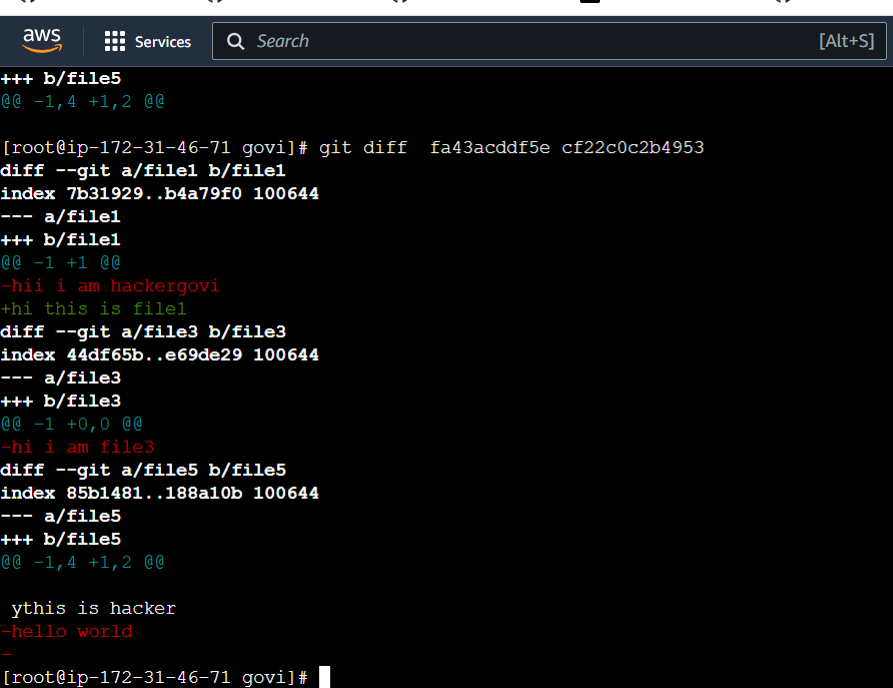
who has worked or changed with specific file is known by using --> $ git annotate filename
switching to old commit in git --> $ git checkout commithash
GIT Branches branch -- is a snapshot of working code
when we create a new branch its representing the main branch filesto know how many branch are there -->
$ git branchcreating a branch --> when we create a new branch its representing the main branch files
$ git branch nameswitching to other branch --> $ git checkout name
merge changes onto master branch
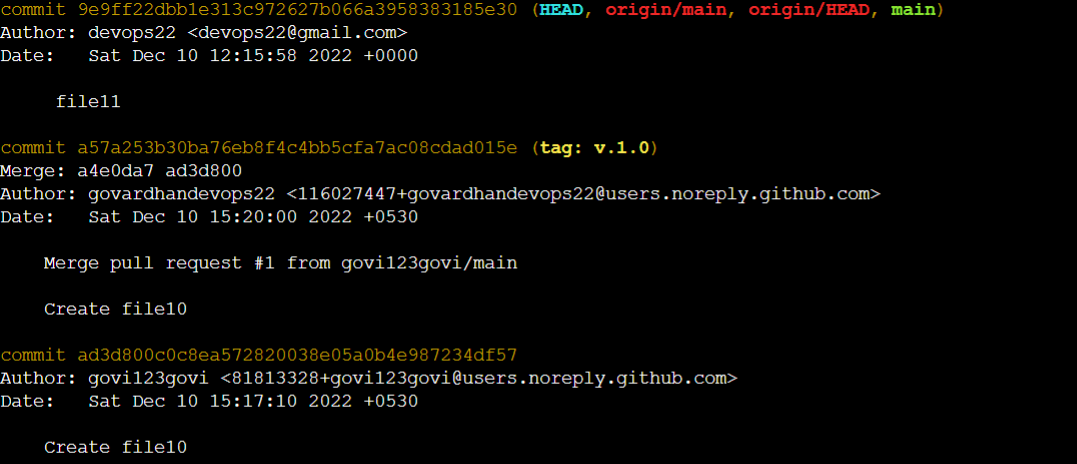
when you want to merge we should be located on that branch where itis mergered $ git merge branchnameTagging a Commit tag is giving a name to commit so we can remember easily tags are ref's that point to specific commit in git histroty tagging is generally used tp capture a point in history that is used for a amrked version relese v.1.0 A tag is like a branch that does not change
To create a tag
$ git tag v.1.0
$ git tag a57a253 v.1.0 (a57a253 is commit hash that is to be tagged ) (v.1.0 is name given to tag)pushing tag to github
$ git push origin v.1.0- To see tags in commit $ git log
Revert changes on git
Revert changes from working directory $ git restore <file_name> Revert changes from Staging Area $ git restore --staged <file_name> #to revert changes from Staging area to working directory $ git restore <file_name> #to revert changes from working directory Revert changes from Local Repository
$ git reset HEAD~ # to revert changes from local repo to working directory $ git restore <file_name(s)> # to revert changes from working directoryRevert changes from Remote Repository We dont have direct way to do this.
Ignoring sensitive file that will we uploaded to github using .gitignore file
create a file with name .gitignore ( touch .gitignore)
add the file name to .gitignore and push the code